How to Get Your Shopify Store to Load in Under 2 Seconds
Six fixes, in the order that matters, to get a Shopify store loading in under 2 seconds on mobile, and how to measure it properly.
- Written by
 Fahad, CEO & Head of Development
- Published
- Updated
- Reading time
- 3 min
- Audit Standard
- Real CrUX Data
On this page · 9 sections
- 01What does "under 2 seconds" actually mean?
- 02Step 1: Measure on mobile, on the pages that sell
- 03Step 2: Fix the hero image
- 04Step 3: Remove apps you don't use
- 05Step 4: Delay third-party scripts
- 06Step 5: Cut your fonts
- 07Step 6: Test whether your theme is the real problem
- 08Is under 2 seconds realistic for every store?
- 09Do I need a speed app?
To get a Shopify store loading in under 2 seconds, work through six fixes in this order: measure on mobile, fix the hero image, remove unused apps, delay third-party scripts, cut your fonts, and test your theme. Shopify's servers are rarely the problem. The slowdown usually comes from what has been added to the store.
What does "under 2 seconds" actually mean?
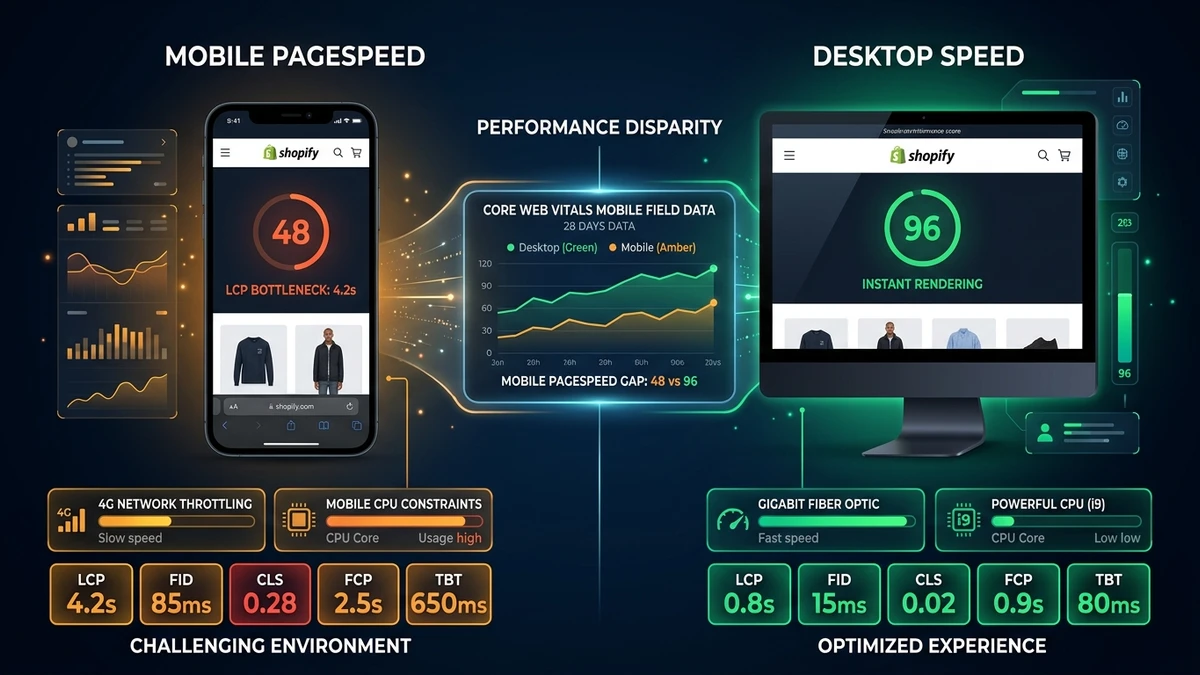
"Load time" can mean several different things, so pick one number before you start. The most useful one is Largest Contentful Paint: how long it takes the biggest thing on screen, usually the hero image, to appear. Google assesses it at the 75th percentile of real visits, so most of your visitors should get that speed, not only the ones on fast connections.
| Metric | Measures | Google's "good" limit |
|---|---|---|
| LCP | When the main content appears | 2.5 seconds or less |
| INP | How quickly the page responds to taps | 200 milliseconds or less |
| CLS | How much the layout jumps around | 0.1 or less |
Step 1: Measure on mobile, on the pages that sell
Run your homepage, your best-selling product page and your main collection page through our free Shopify speed test or PageSpeed Insights, on mobile. Then check Shopify's web performance reports, which use data from real visits. Save the numbers, because they are your before and after.
Step 2: Fix the hero image
The hero is the LCP element on most Shopify pages, which makes it the fastest win available.
- Never lazy-load the first image on the page. It should load straight away.
- Give it `fetchpriority="high"` so the browser fetches it first.
- Serve it at the size it is displayed. A phone does not need a 3,000-pixel image.
- Replace an autoplaying hero video with an image on mobile, or at least use a light poster image.
Our Shopify image guide covers formats and compression in detail.
Step 3: Remove apps you don't use
Every app can add scripts to every page, and uninstalling an app does not always remove its code. List each app, ask what revenue it brings in, and remove the rest. Then search your theme for leftover code from apps you have already deleted. Our script cleanup guide shows how.
Step 4: Delay third-party scripts
Chat widgets, review carousels and tracking tags don't need to run before the page appears. Load them after the first interaction or once the page is idle, and move tracking pixels into Shopify's customer events where you can. This helps LCP and INP, and shoppers rarely notice the delay.
Step 5: Cut your fonts
Use one or two font families at most, with only the weights you need. Self-hosted WOFF2 files or system fonts are the quickest options. Our font guide compares them.
Step 6: Test whether your theme is the real problem
If you are still slow after steps 2 to 5, add a free Shopify theme such as Dawn to your store without publishing it, then test its preview with the same products. If it is much faster, your theme is the problem, and no amount of tweaking will fully fix it. Our Shopify theme speed rankings show how 100 themes perform for real shoppers.
Is under 2 seconds realistic for every store?
No. It depends on your theme, apps, images and where your visitors are. A store that needs several heavy apps may stop at 2.5 seconds, and that is still a good result. Be wary of anyone who promises a fixed number before looking at your store, or who offers a quick script that lifts your score overnight. Some of those tools hide scripts from the test without making the store faster, as we explain in our guide to fake speed optimization.
Do I need a speed app?
Usually not. Most speed comes from removing things, which an app can't do for you. Our comparison of speed apps and manual optimization explains when an app does help.
Want to know whether the work will pay for itself? Use our speed optimization ROI guide.
Prefer to have it done for you? We optimize Shopify stores by hand, on a copy of your theme, with a before and after report.
See speed optimization