
How to Speed Up Your Shopify Store: The Complete 2026 Guide
A practical, no-apps guide to making a Shopify store fast — what actually slows it down, the fixes in priority order, and the scores you should expect.
- Written by
 Fahad, CEO & Head of Development
- Published
- Reading time
- 4 minutes

A slow Shopify store is the most expensive problem most merchants never see on a dashboard. It does not show up as a line item — it shows up as the visitors who left before your hero image painted, the ad clicks you paid for and lost, and the rankings that quietly slipped. This guide is the exact order we work through on a speed optimization engagement, written so you can do the first pass yourself.
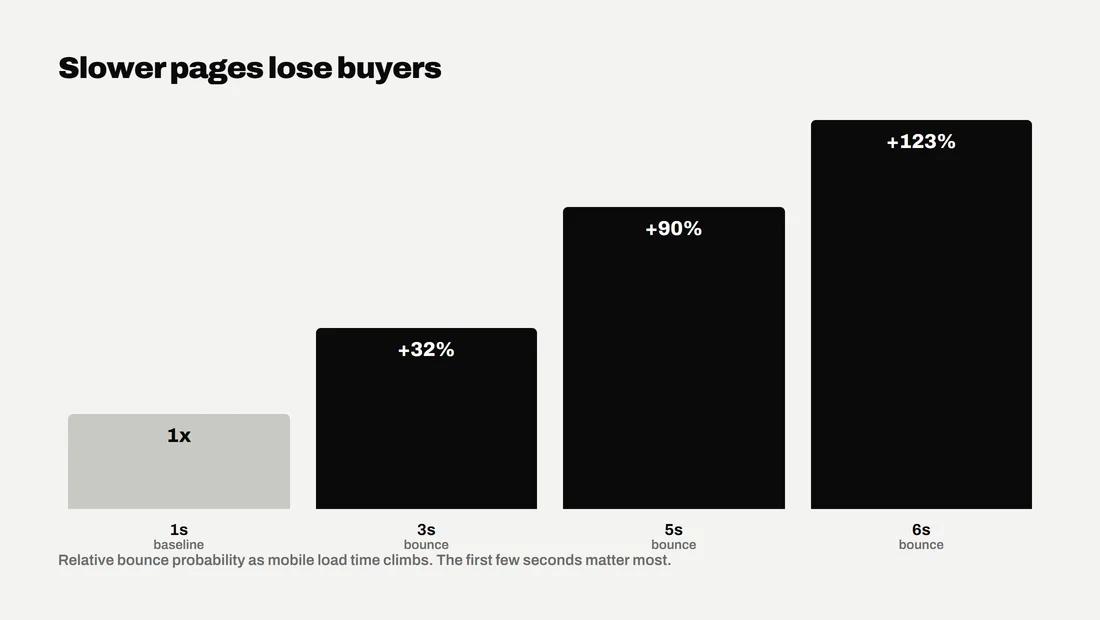
Google is clear that page experience is a ranking signal and that speed correlates with conversion. Their own research on mobile sites found that as load time climbs, the probability of a bounce rises sharply — the chart below is the pattern every store owner should have in their head.
Step 1 — Measure the right thing, on the right device
Before you change anything, get a baseline from a tool Google actually uses. Run your homepage and your best-selling product page through PageSpeed Insights and look at the mobile tab, not desktop. Most Shopify traffic is mobile, and mobile is where the scores are won or lost.
- Field data (the top of the report) is what real visitors experienced over the last 28 days. This is what Google ranks on.
- Lab data (the bottom) is a single simulated load. It is useful for debugging, but do not obsess over the exact number.
- Note your three Core Web Vitals — LCP, INP and CLS — and keep the screenshot. You will want the before/after.
Step 2 — Fix the hero image (your biggest, fastest win)
On a Shopify storefront, the Largest Contentful Paint element — the biggest thing on screen — is the hero banner about nine times out of ten. Three things make it slow, and fixing them is usually worth more than everything else combined:
- 01It is lazy-loaded. Themes lazy-load images by default, which means the browser deliberately waits before fetching the one image your score depends on. Set `loading="eager"` and `fetchpriority="high"` on the first banner only.
- 02It is far larger than it displays. A 3000px image rendered into an 800px slot wastes most of its bytes. Use Shopify's image transforms with a real `srcset` and let the browser pick the right size.
- 03It is a JPEG or PNG. WebP is typically 25–35% smaller at the same quality, and Shopify's CDN serves it automatically if you ask for it. More on this in our image optimization guide.
Step 3 — Cut the apps and third-party scripts
Every app you install can inject JavaScript and CSS into every page, whether that page uses the app or not. A store with twenty apps is usually carrying the weight of five it no longer needs. Open your theme's code and your `theme.liquid`, and audit what is actually loading.
- Uninstall apps you no longer use — and remember that uninstalling does not always remove the leftover code. Check for orphaned snippets.
- Pop-ups, chat widgets, reviews and upsell apps are the usual offenders. Load them only where they are needed, and defer them until after the page is interactive.
- Replace app-driven features with native theme sections where you can. One well-built section beats three apps doing the same job.
Step 4 — Trim the theme, CSS and fonts
This is the slow, careful work that separates a real result from a quick score bump. It is also where doing it by hand, on a copy of the theme, matters most.
- Fonts: limit yourself to the weights you actually use. Each custom font file is a render-blocking download. Prefer `font-display: swap` so text is visible immediately.
- CSS and JS: remove unused styles and duplicate libraries. Many themes ship with jQuery and a slider library the store never calls.
- Layout shift (CLS): give every image and embed explicit width and height so the page does not jump as it loads. Reserve space for anything that arrives late.
What a good result looks like
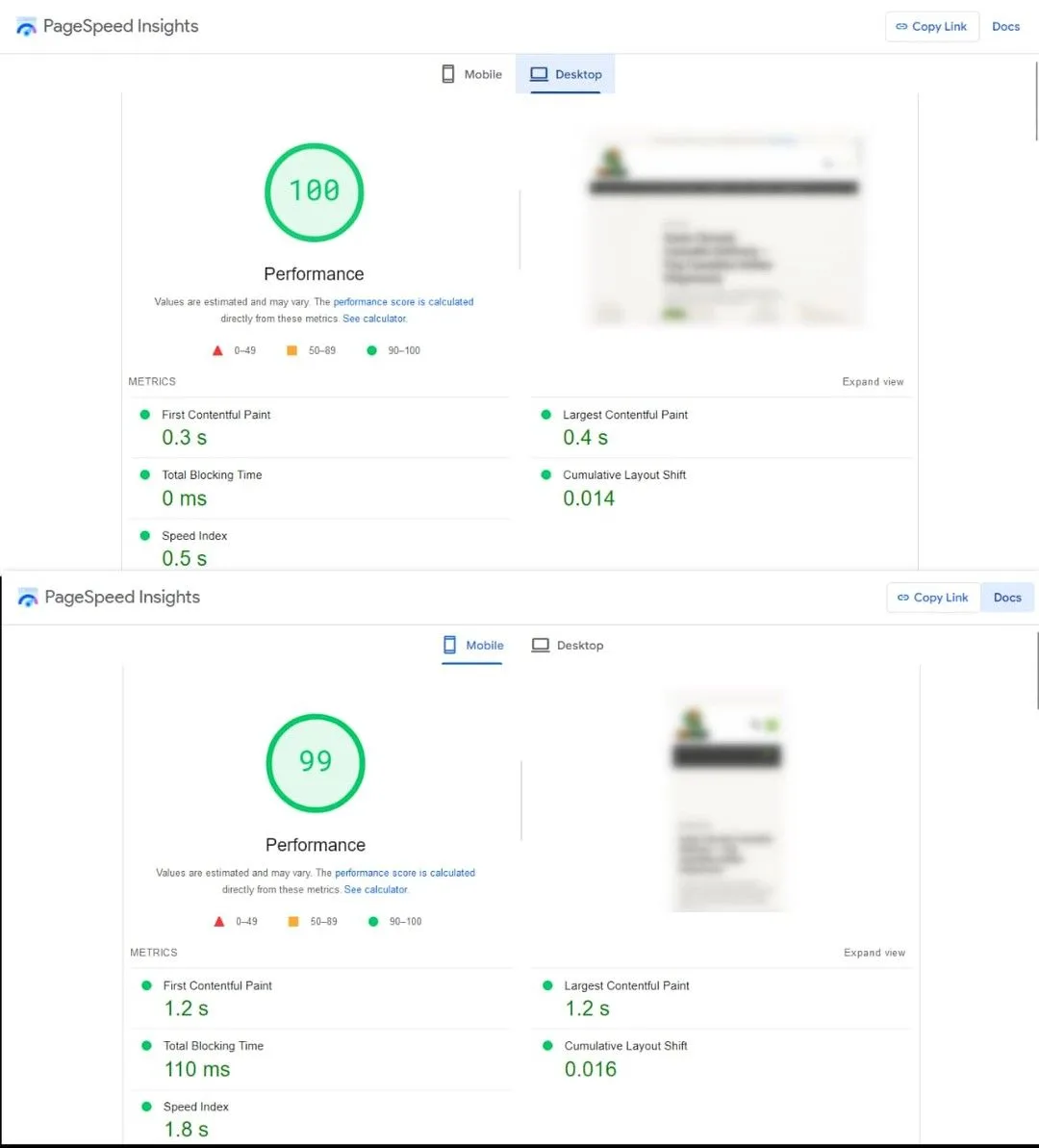
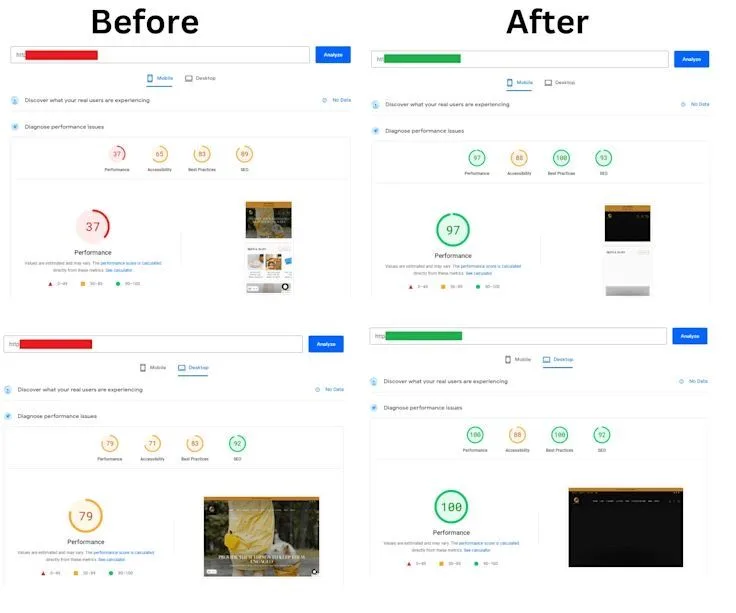
Done properly, a mid-weight Shopify store should land a mobile PageSpeed score in the 90s and clear all three Core Web Vitals. These are real client reports after our work — a desktop 100 with mobile 99, and before/after jumps from the 30s and 70s into the high 90s.
Keeping it fast
Speed is not a one-time job. It drops as apps and content are added. Re-test after every big change — a new app, a new section, a theme update — and keep an eye on the field data in Google Search Console, which reports Core Web Vitals for your real visitors over time.
Want a store that scores in the 90s and stays there — by hand, on a copy of your theme, with a before/after report?
See speed optimization