Shopify Rollouts: How to A/B Test and Schedule Store Changes
Shopify Rollouts lets you A/B test a theme or checkout and schedule changes for a set time. How it works, what it can't test, and how much traffic a test needs.
- Written by
 Fahad, CEO & Head of Development
- Published
- Reading time
- 6 min
- Audit Standard
- Real CrUX Data
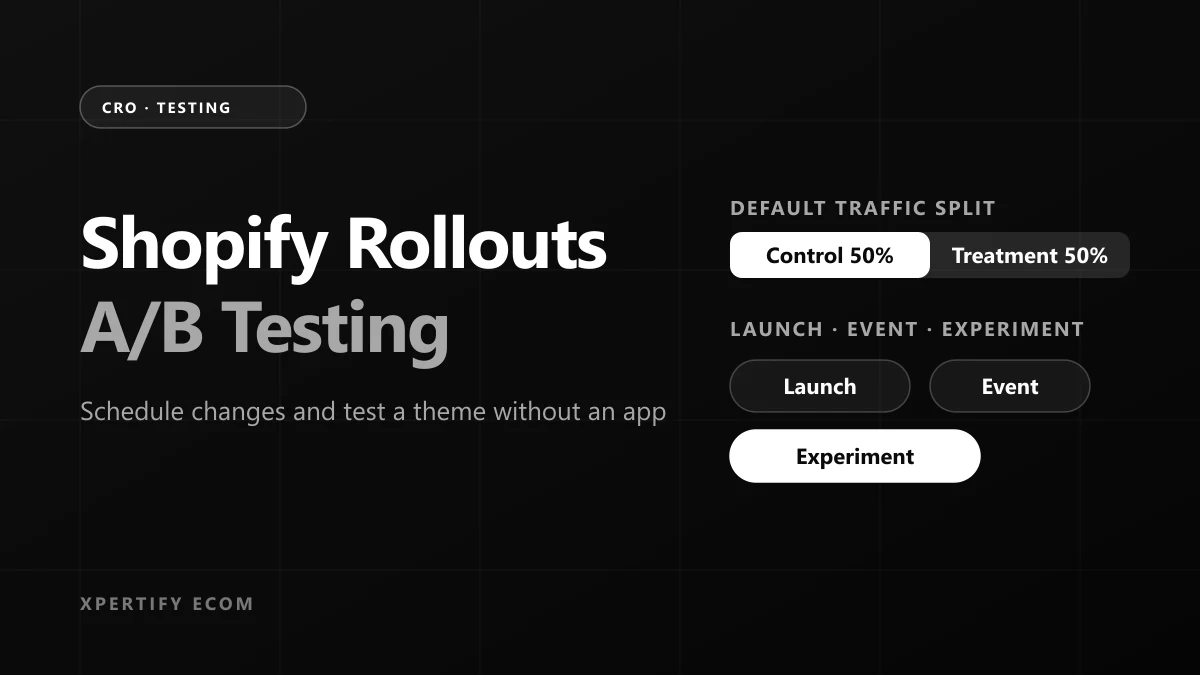
Shopify Rollouts is a built-in tool, found under Markets > Rollouts, that lets you schedule storefront changes and run A/B tests without an app. You can use it to publish a new theme at a set time, run a sale theme that switches itself back, or split traffic between your current theme and a new one. It is useful, but it is not a full testing platform: it tracks a handful of metrics, cannot target by segment or device, and does not document how it picks a winner. This guide shows how to use it properly.
Everything here comes from Shopify's help pages and changelog, read in November 2026 (sources at the end). The statistics section is our own maths, and we say so where it appears.
The three types of rollout
| Type | What it does | Good for |
|---|---|---|
| Launch | Merges your changes permanently at a date and time you set. All eligible visitors get them, with no traffic split. It cannot be reverted after the rollout ends. | Going live with a new theme or checkout at a planned moment |
| Event | Publishes changes for a set period, then rolls back. It needs an end date. | A Black Friday theme or a short sale |
| Experiment | Compares a control (your current store) with a treatment (your changes). The split is 50/50 by default and the end date defaults to 90 days after the start. You can change both before saving. | Testing a change before committing to it |
What you can change in a rollout
- Main theme: edit the current theme, or replace it with another one. One theme change per rollout.
- Checkout and customer accounts: replace the configuration. One per rollout.
- Discounts: switch existing discounts on or off, up to 250 per rollout.
- Catalogs: set market catalogs to Active or Draft.
- Translations: content in a replacement theme can only be edited through the Translate & Adapt app.
What it cannot do
- Test changes to Liquid templates.
- Work with vintage themes, or with headless and custom storefront checkouts for theme and checkout changes.
- Target visitors by segment, customer tag or device. Visitors are assigned at random.
Which plan do you need?
According to Shopify's help pages, rollouts are available on Basic and above, and experiments need Grow or higher. Shopify's March 2026 changelog says targeting specific markets needs Advanced or Plus, but the help pages we read do not mention that limit. Check Settings > Plan and the current help page before you plan around it.
How to set one up
- 01Go to Markets > Rollouts and create a rollout.
- 02Choose Launch, Event or Experiment.
- 03Add your changes. For a theme edit, open Online Store, find the main theme's Rollouts menu and choose Edit theme. For checkout, use Settings > Checkout > Configurations.
- 04Set the traffic allocation: the percentage of eligible visitors the rollout applies to. Below 100%, a start and end date are required.
- 05For an experiment, set the traffic split between control and treatment.
- 06Schedule it. Times use your store's time zone, set under Settings > General.
- 07Review and save.
What the results show
| Rollout | Metrics in the admin |
|---|---|
| Experiment with a theme change | Conversion rate over time, bounce rate, reached-checkout rate, add-to-cart rate |
| Experiment with a checkout change | Checkout conversion rate only |
| Launch with a theme or checkout change | Gross sales, average order value, orders, total sales, sessions and conversion rate over time, new vs returning customers, bounce rate. Checkout launches add checkout conversion rate. |
Results update a few minutes after each visit. Bot traffic is excluded, and only visitors who accepted tracking consent are counted. Revenue and average order value are not part of the fixed experiment metrics, but you can query them with ShopifyQL's sales dataset. The data does not flow into GA4 or app pixels.
The limits that change how you read a result
- No documented winner rule. Shopify's pages say experiment results show statistical results and a significance test, but they do not name the test, the threshold, a minimum sample size or any warning about stopping early.
- Results are session-based. A visitor who ends up in both control and treatment is excluded from experiment results.
- Assignment uses a cookie. A new browser or device can land in a different group. Changing the split mid-test only affects new visitors.
- Overlapping rollouts distort traffic. Several can run at once, so the real share of traffic can differ from what you set.
- Ads and feeds can disagree with your store. Experiments, and events under 100% reach, only change the online store. Ads and product feeds can show different prices or products than a visitor sees on site.
- Archiving deletes the work. Archiving a rollout permanently removes its theme changes, and applying one permanently cannot be undone.
How much traffic does a test need?
Rollouts will not warn you that your test is too small, so do the maths first. A widely used rule of thumb (Lehr's rule) says each variant needs about 16 × p × (1 − p) ÷ δ² visitors, where p is your baseline conversion rate and δ is the smallest absolute lift you want to detect, at 5% significance and 80% power. These figures are our calculation using that rule, not Shopify's numbers.
| Baseline conversion | Lift to detect | Visitors needed per variant | Total visitors (50/50) |
|---|---|---|---|
| 1.3% (median Shopify store) | 10% better (1.3% to 1.43%) | about 121,500 | about 243,000 |
| 1.3% | 20% better | about 30,400 | about 60,800 |
| 1.3% | 30% better | about 13,500 | about 27,000 |
| 2.7% (top 20% of stores) | 10% better | about 57,700 | about 115,400 |
| 2.7% | 20% better | about 14,400 | about 28,800 |
| 2.7% | 30% better | about 6,400 | about 12,800 |
The 1.3% and 2.7% baselines come from Littledata's October 2026 benchmark, which we cover in our conversion rate post. For other numbers, use a sample size calculator such as Evan Miller's.
Read the table plainly. A store at a 1.3% conversion rate with 3,000 visitors a month would need about nine months to detect a 30% improvement, and could never detect a 10% one in a sensible time. That is not a flaw in Rollouts. It is how statistics works. If your traffic is small, test only big, structural changes, or skip A/B testing and use before-and-after comparisons together with session recordings and customer feedback.
Rules that protect a test
- Change one thing per experiment, or you will not know what worked.
- Run it for whole weeks, so weekdays and weekends are both included.
- Do not start it in the middle of a sale or a big campaign, unless the campaign is what you are testing.
- Decide the end date before you start, and do not stop early because the numbers look good.
Using rollouts for Black Friday
This year Black Friday is 27 November and Cyber Monday is 30 November. If you want a holiday theme to go live at a set minute and switch back afterwards, an Event rollout does exactly that, with no one needing to be online at midnight. Build the holiday theme as a copy, schedule it, and check the preview on mobile first. Our Q4 readiness checklist covers the rest.
What to test first
- 01A new product page layout, such as a sticky add to cart bar.
- 02Where and how you show your free-shipping threshold.
- 03A simplified checkout configuration.
- 04A new homepage structure for your top traffic source.
- 05A redesigned collection page with different filters.
For ideas on what usually moves the needle, read our guide to A/B tests that win.
Need a variant of your product page, or a custom section built for a test? We build it on a copy of your theme, so your live store is never at risk.
See custom coding