Your Shopify Store Got Slower After a Theme Update: How to Diagnose and Fix It
A theme update made your Shopify store slower? Here is how to find the exact cause, roll back safely on a copy, and get your mobile speed score back.
- Written by
 Fahad, CEO & Head of Development
- Published
- Reading time
- 3 minutes

You clicked update, or an app quietly updated its theme code, and the next morning your store felt heavier. Pages take longer to appear, the phone score dropped, and nobody on the team can say what changed. This is one of the most common speed problems we are called in for, and it is almost always solvable in an afternoon.
The approach below is the one we use on speed optimization work. It starts by proving the slowdown, then finds the cause before anything gets changed.
What usually changes in a theme update
- New JavaScript bundles. A new version can ship a larger script that runs on every page, including pages that never needed it.
- Different image defaults. The hero or product image may now load lazily, or request a much larger file than the slot needs.
- Re-injected app code. Apps that add scripts to the theme often get restored during an update, sometimes bringing old code back with them.
- Changed section settings. A default that used to be off, such as an animated slider or a video background, can turn back on.
Step 1: Prove the slowdown on the same page
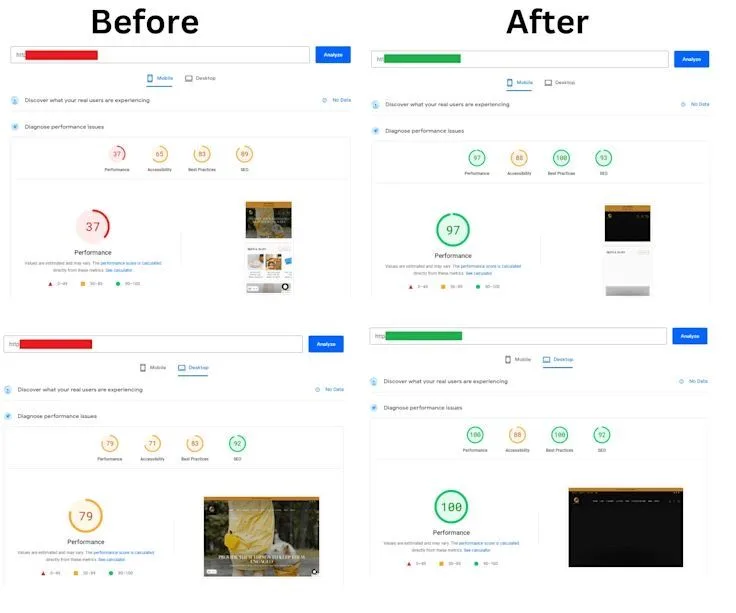
Pick one URL, your homepage or a bestselling product page, and run it through PageSpeed Insights on the mobile tab. If you have a before reading, compare the two. If you do not, check the field data at the top of the report, which reflects real visitors over the previous 28 days. Google ranks on that data, as explained in Google's Core Web Vitals guidance.
Step 2: Match the symptom to the likely cause
| What you see | Likely cause | First check |
|---|---|---|
| Slow first paint on every page | New global script or stylesheet | Compare the scripts in theme.liquid before and after |
| Hero image arrives late | Hero marked lazy-loaded, or oversized | Inspect the hero image tag and its requested size |
| Layout jumps as the page loads | Fonts or app widgets loading without reserved space | Check layout shift in the report's diagnostics |
| Only product pages got slower | App block re-added on product templates | Review the product template for app blocks |
| Slow only on mobile | Desktop-only sections running on phones | Disable animated or video sections on small screens |
Step 3: Fix it on a copy, never on the live theme
Shopify lets you keep more than one theme, so duplicate the live one and work on the copy. The store admin steps are in the Shopify help center, and the developer reference for theme code is in the Shopify theme documentation. Change one thing at a time, re-test after each change, and publish only once the copy beats the live store on the scores that matter.
Step 4: Remove what the update brought back
Open the theme code and look for apps you no longer use. Uninstalling an app does not always remove its snippet, so the code can stay behind and keep loading. Delete the orphaned snippets, then test again. For a deeper look at how apps add weight, read how app bloat quietly kills conversion.
If a recent update slowed your store and you want it fixed properly, we handle the diagnosis and the rollback on a copy of your theme so the live store keeps selling.
See speed optimization