Shopify Subscriptions Setup Guide: Limits, Gateways and Gotchas
How to sell subscribe-and-save on Shopify with the Shopify Subscriptions app: requirements, setup steps, what customers can do, and what does not work.
- Written by
 Fahad, CEO & Head of Development
- Published
- Reading time
- 4 min
- Audit Standard
- Real CrUX Data
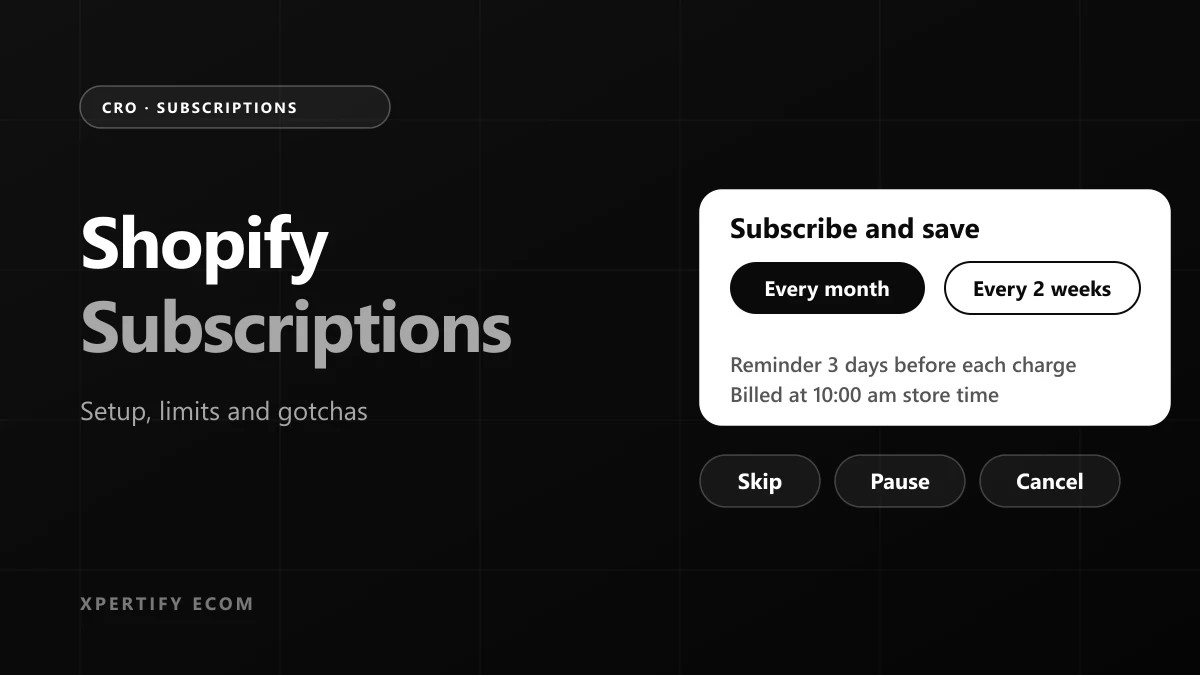
Shopify Subscriptions is an app, installed from the Shopify App Store, that lets customers buy a product on a repeat schedule. You create subscription plans, attach them to products, and show a subscription widget on the product page. It is a good fit for products people use up, and it has restrictions that catch stores out: only certain payment gateways work, bundles are not compatible, and a few checkout texts cannot be changed.
This guide follows Shopify's Help Center pages on the app, linked at the end and read in November 2026. Those pages do not state plan requirements or the app's own pricing, so we do not either. Check both in the App Store listing before you commit.
What you need before you start
- A supported payment gateway: Shopify Payments, PayPal Express, Authorize.net, Adyen or Stripe. Stripe is available only to select merchants, and availability depends on your region and the gateway's terms.
- A supported theme: it must support sections and blocks. Shopify lists any Online Store 2.0 theme built by Shopify, the Horizon family, Debut 15.0 or later, and Brooklyn 17.0 or later. For any other theme, ask the theme developer.
- Permission: a staff role with the apps and sales channels permission.
- Customer accounts turned on, because customers manage subscriptions there.
How to set it up
- 01Install the Shopify Subscriptions app from the App Store.
- 02Create subscription plans and attach them to products. A plan is a template with a delivery frequency and a discount type, and one product can have several plans.
- 03Show the widget on the product page. On an Online Store 2.0 theme: Online Store > Edit theme > open your product template > Product information > Add block > Subscription widget > Save. If the widget shows twice, turn off the Subscription widget app embed in the theme editor.
- 04On older themes (Debut 15.0 or later, Brooklyn 17.0 or later), add the app embed block div to the product template code and turn on the Subscription widget under App embeds.
- 05Check your policies. A purchase-options cancelation policy is added automatically once a subscription exists, and customers must agree to it at checkout. Edit it in your store policies.
- 06Optionally add subscription blocks to customer accounts: a Subscription management page, an order action button, and a Manage subscription link on the thank-you page.
What customers can do
Customers sign in to their account with an email and a six-digit code, with no password, and can reach it from the manage-subscription link in subscription emails. There they can view upcoming and past orders, skip the next order, pause and resume, change the payment method or shipping address, and cancel. Shopify warns that cancelling is immediate and cannot be undone, while pausing is the reversible option.
- Customers receive an upcoming-order reminder 3 days before each recurring charge, which gives them time to skip, pause or update payment.
- Customers are billed the day after the subscription is due, at 10:00 am store local time.
- Merchants cannot see full card numbers. Shopify stores the card data.
Discounts: the rule that surprises people
Automatic discounts from your Discounts section apply to subscription orders. But discounts from apps that use Shopify Functions are reused, not re-run, and by default they apply only to the first payment. The app sets how many payments they cover. Gift cards used on a subscription also apply only to the first payment. If you promise 15% off every delivery, test that the second order really gets it.
What does not work
- Bundles are not compatible with the Shopify Subscriptions app.
- Subscription products sell only on the Online Store, Shopify POS, Shop and custom storefront channels.
- The order edits API does not support subscriptions.
- Local, manual and non-credit-card payment methods may not be available for recurring billing.
- On Authorize.net, PayPal is the only wallet, and Google Pay and Apple Pay are not supported. Apple Pay for subscriptions is limited to Visa and Mastercard.
- On some stores Shop Pay is the only wallet.
- Draft orders can include subscriptions, but completing one needs an invoice, a shared checkout link, a card payment, a mark-as-paid action or payment terms.
- On plans other than Plus, some checkout text for subscription orders cannot be edited or removed.
Is a subscription right for your product?
| Good fit | Poor fit |
|---|---|
| Products people use up: coffee, supplements, skincare, pet food, razors | One-off purchases: furniture, gifts, tools |
| Products with steady demand and predictable shipping | Products you often run out of, because a skipped shipment is a cancelled customer |
| Brands that can fulfil on a fixed schedule | Bundles you plan to sell on subscription, which the app does not support |
Our advice
- 01Start with one product and one plan. Add a second frequency only if customers ask.
- 02Keep the discount modest and test that it applies on payment two and three.
- 03Write your skip and pause rules in plain words on the product page. Easy skipping retains more customers than hard cancelling.
- 04Place a test subscription, skip it, pause it and cancel it before launch.
- 05Pair it with the email flows that remind customers what is coming.
Want subscriptions set up so the widget, discount rules and customer account all work on your theme? We do it for a clear price.
See custom coding