Shopify Flow Guide: 7 Free Automations for Your Store
Shopify Flow automates repetitive admin jobs for free. Seven workflows to build: low-stock alerts, VIP tags, risky orders, abandoned checkouts and more.
- Written by
 Fahad, CEO & Head of Development
- Published
- Reading time
- 5 min
- Audit Standard
- Real CrUX Data
On this page · 12 sections
- What Flow is and who can use it
- The triggers you can build on
- 1. Low-stock alert
- 2. Tag sold-out and back-in-stock products
- 3. Tag VIP customers
- 4. Tag customers by recent spend or order count
- 5. Handle risky orders
- 6. Recover abandoned checkouts
- 7. Alert yourself when a workflow fails
- How to test a workflow
- When Flow is not enough
- Where to start
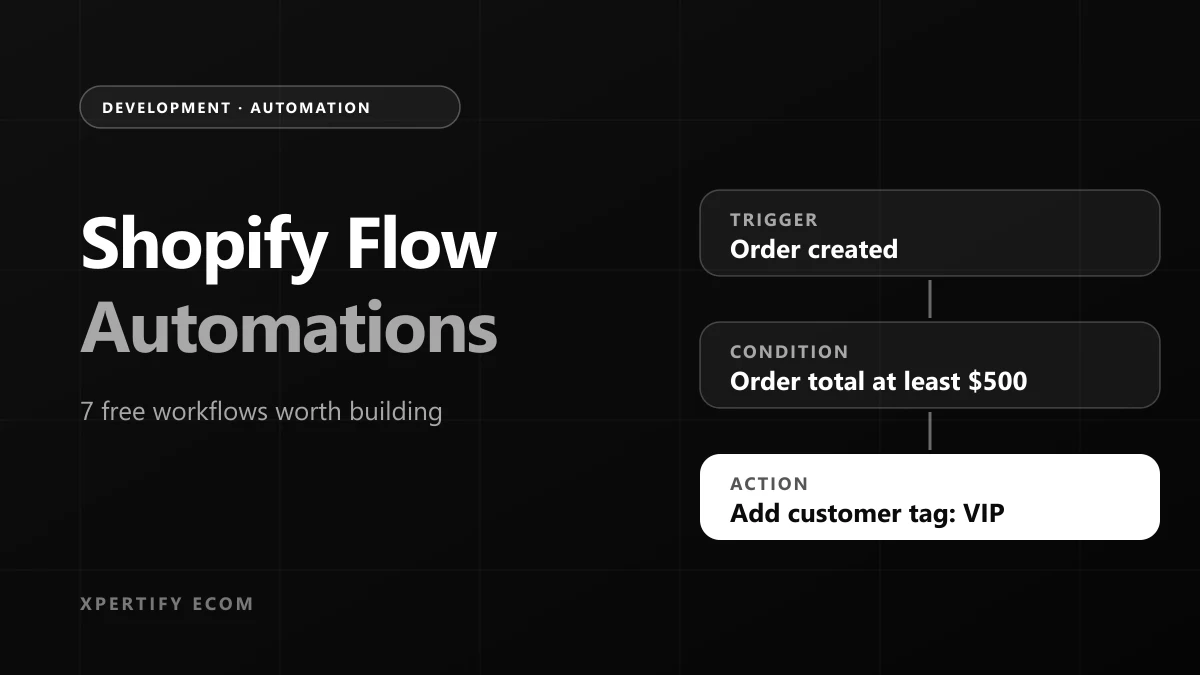
Shopify Flow is a free app that runs jobs in your admin for you: when something happens in your store, it checks a condition and takes an action. Tag a customer who spends over a set amount, warn you when stock runs low, flag a risky order. Every workflow has the same three parts: a trigger, optional conditions and one or more actions. This guide covers seven workflows worth building, with the traps Shopify's own documentation warns about.
Details here come from Shopify's Flow help pages, read in November 2026 (sources at the end). Shopify's pages do not state numeric limits for most things, so we mention only the ones they do.
What Flow is and who can use it
Flow is a free app from the Shopify App Store. Shopify's help pages say it is available on the Basic, Grow, Advanced and Plus plans, that the Send HTTP request action needs Grow or higher, and that tasks from custom partner apps are Plus only. Check the current plan notes in the help center before you rely on a specific action.
- Trigger: the event that starts a workflow. It can be a store event, a scheduled time or an event from an app. A workflow has exactly one trigger.
- Condition: a check on the event or on related orders, products and customers. You can require several.
- Action: what happens next: add or remove tags, hold fulfillment, cancel an order, send an email, send an HTTP request, or post to a service such as Slack.
- Advanced steps: scheduled workflows, Get data (to fetch lists, up to 100 items) and loops.
The triggers you can build on
| Area | Examples of triggers |
|---|---|
| Orders | Order created, paid, fulfilled, canceled, risk analyzed, refund created |
| Customers | Customer created, tags added, subscribed to email marketing, abandons checkout, joined segment |
| Products and stock | Product created or updated, product status updated, variant out of stock, back in stock, inventory quantity changed |
| Returns and fulfillment | Return requested, approved or declined, fulfillment created |
| Subscriptions | Subscription contract created, billing attempt success or failure |
| B2B | Company created, company contact created |
| Other | Scheduled time (as often as every 10 minutes), Workflow error occurred, Metaobject entry created |
1. Low-stock alert
There is no 'inventory low' trigger. Use Product variant inventory quantity changed and add two conditions: the current quantity is at or below your threshold, and the previous quantity was above it. Then the alert fires once, when stock crosses the line, instead of on every sale.
- Trigger: product variant inventory quantity changed.
- Conditions: current quantity is 5 or less, and previous quantity is more than 5. A drop from 7 to 5 sends the alert. A later drop from 5 to 4 does not.
- Action: email your team, or post to Slack.
- Test it: change the product's inventory in the admin.
2. Tag sold-out and back-in-stock products
Flow has Product variant out of stock and Product variant back in stock triggers. Add a 'Sold out' tag on one and remove it on the other, then build an automated collection from that tag. Shopify's template library also has inventory and merchandising templates, including ones that hide and republish products by inventory level.
3. Tag VIP customers
Shopify's own getting-started example: trigger Order created, condition order total is at least $500, action add customer tag 'VIP'. Use that tag later to build a customer segment, a private discount, or an early-access list.
4. Tag customers by recent spend or order count
For a rule based on history, Shopify documents a pattern with Get data. On Order created, fetch the customer's orders from the last six months, count them and sum them, then add one tag at five or more orders and another at $100 or more. Note two limits: it looks at a six-month window rather than lifetime, and Get data works on lists of up to 100 items.
5. Handle risky orders
Use the Order risk analyzed trigger. It uses Shopify's own fraud analysis only, not scores from third-party apps, and the analysis takes a little time, so it does not run the instant an order is created.
- Start safe: tag the order and notify a staff member when risk is high.
- If you capture payments manually: capture only when risk is not high.
- If you capture automatically and fulfill manually: the Cancel order action can stop a risky order.
- Shopify's Cancel high-risk orders template also refunds, restocks, tags the order and customer, and sends a notification. Shopify recommends a manual review after a cancellation.
6. Recover abandoned checkouts
The Customer abandons checkout trigger starts this one, and Shopify offers a Recover abandoned checkout template. By default it emails 10 hours after the checkout if no order was placed, to customers subscribed to marketing. Suspected card-testing and bot checkouts do not create abandoned checkouts, so they will not trigger it.
Shopify says abandoned-checkout automations sent through Shopify Messaging are always free and do not count toward the 10,000 free monthly emails. Check your existing abandoned checkout email settings first, so customers do not get two reminders. Our abandoned cart email guide covers what to say.
7. Alert yourself when a workflow fails
Automations fail quietly. The Workflow error occurred trigger lets you send yourself an email or a Shopify alert whenever any workflow errors. Build this one first, and then every other workflow is safer.
How to test a workflow
- Low stock: change the product's inventory in the admin.
- Abandoned checkout: place a test order, fill in details and leave checkout without paying.
- Risk analysis: create a test order that triggers Shopify's fraud analysis.
- Sidekick can build a scheduled workflow from a plain-English request, and Shopify's Spring '26 Edition says it can generate test events and check Flow logic.
When Flow is not enough
Flow handles tags, notifications, emails and HTTP calls well. If a job needs more, such as syncing orders with an ERP, custom calculations on product pages, or logic inside checkout, it belongs in an app or custom code. See our guides to checkout extensibility and metafields and metaobjects for where that logic can live.
Where to start
- 01Build automation 7 (error alerts) first.
- 02Add the low-stock alert for your five best sellers.
- 03Tag VIP customers at a threshold that fits your average order value.
- 04Turn on abandoned checkout recovery if you do not already have it.
- 05Add risky-order tagging and review the results for a month.
Need something Flow cannot do, such as an ERP sync, a custom calculation or a feature inside checkout? We build it for a clear price.
See custom coding