Free Google Shopping Listings on Shopify: The Complete Setup Checklist
Free product listings can put your Shopify products in front of buyers at no cost per click. Here is the setup checklist, step by step.
- Written by
 Fahad, CEO & Head of Development
- Published
- Reading time
- 2 minutes
Google can show your products in Shopping results without you paying per click, if your listings meet the requirements. Free listings are a strong first step, and they also show you which products shoppers already want before you spend on paid campaigns. The setup is more about accuracy than cleverness: correct product data, a store that matches it, and a feed that stays current.
Step 1: Set up the Google channel in Shopify
Shopify offers a Google and YouTube sales channel that connects your products to Google Merchant Center. Install it from the sales channels in your admin, then connect the Merchant Center account you will use for the store. Keep one account per store, so policy warnings are easy to trace.
Step 2: Check the product data before you submit
Google reads your product data, not your store's marketing copy. Every product needs an accurate title, a clear image of the product on a plain background, a correct price and availability, and a working product page. Mismatches between the feed and the page are the most common reason listings get disapproved.
| Check | Why it matters |
|---|---|
| Title names the product clearly | Shoppers and Google both match on it |
| Price on the feed equals the price on the page | Mismatches cause disapprovals |
| Image shows the product, no heavy text overlays | Google expects a clean product photo |
| Availability is correct | Out-of-stock items should not show as available |
| Shipping and returns are accurate | Required for trust and policy compliance |
Step 3: Read the policies before you go live
Google publishes Merchant Center policies on what can be shown, how prices must be presented and what counts as a valid store. Read the sections that apply to your products before you submit, because a policy strike can pause the whole feed. If something is unclear, fix the product rather than arguing with the review.
Step 4: Keep the feed current
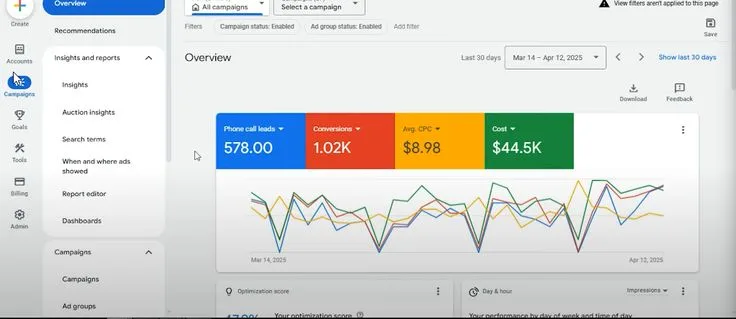
A free listing that shows an out-of-stock product or an old price damages trust quickly. Set your inventory to sync automatically, check the Merchant Center diagnostics every week, and fix warnings the same week they appear. Feeds are living data, and the stores that do well treat them that way.
Once the feed is clean, the next step is tuning it for search. Our guide to Google Shopping feed optimization covers titles, attributes and the fields that matter most.
We set up the channel, clean the product data and check the feed against policy, so your free listings start on solid ground.
See Shopify marketing